

Introduction
What is Kurrent Cloud?
Kurrent Cloud enables seamless deployment of managed KurrentDB clusters with major cloud providers.
Learn more
Not using Kurrent Cloud and want to learn more? Find more information and sign up links on our website.
As a customer of Kurrent Cloud, you get access to the Cloud console, where you can provision and manage KurrentDB clusters, backup and restore your data, and establish the connection between Kurrent Cloud networks and your own cloud infrastructure.
Kurrent Cloud operations can be automated using the Terraform provider, Pulumi provider, and the CLI tool which is built on top of the same API.
Cloud quick start
Follow the steps in this guide to access the Kurrent Cloud console, provision your first cluster, and connect it to your cloud infrastructure. Kurrent offers video demonstrations for running Kurrent Cloud on AWS and Azure that adhere closely to the following instructions.
Get an account
KurrentDB offers a single sign-on (SSO) for our customers. Using a single account, you can access various free and paid services.
To get an account, proceed to the Cloud console, where you'll see the login screen. There, you'll have the option to sign up.
Tips
If you already have an account at our community forum (Discuss), you can use it to log in to Kurrent Cloud.
To finalize the sign-up process, you must confirm your email address by clicking the link in the confirmation email. It might happen that the confirmation email doesn't get through, please check the junk email folder in your email client as you might find it there.
Login to the Kurrent Cloud console
With the new account, you can log in to the Cloud console.
In the console, you first get to the list of organizations you have access to.
You start with an empty list, so you must add an organization.
Tips
The Cloud console has the concept of Context. You'll typically be in the organization or project context.
Organizations
With your account, you might have more than one organization. Each organization has its own billing account and is, therefore, invoiced separately for all the resources within the organization. For example, if you have several customers and want to have a separate KurrentDB cluster for each customer and also be able to bill the customer for the cloud resources, you can separate each customer into its own organization.
When you click on an organization in the list, you get to the projects screen, where you can see all the projects for the selected organization.
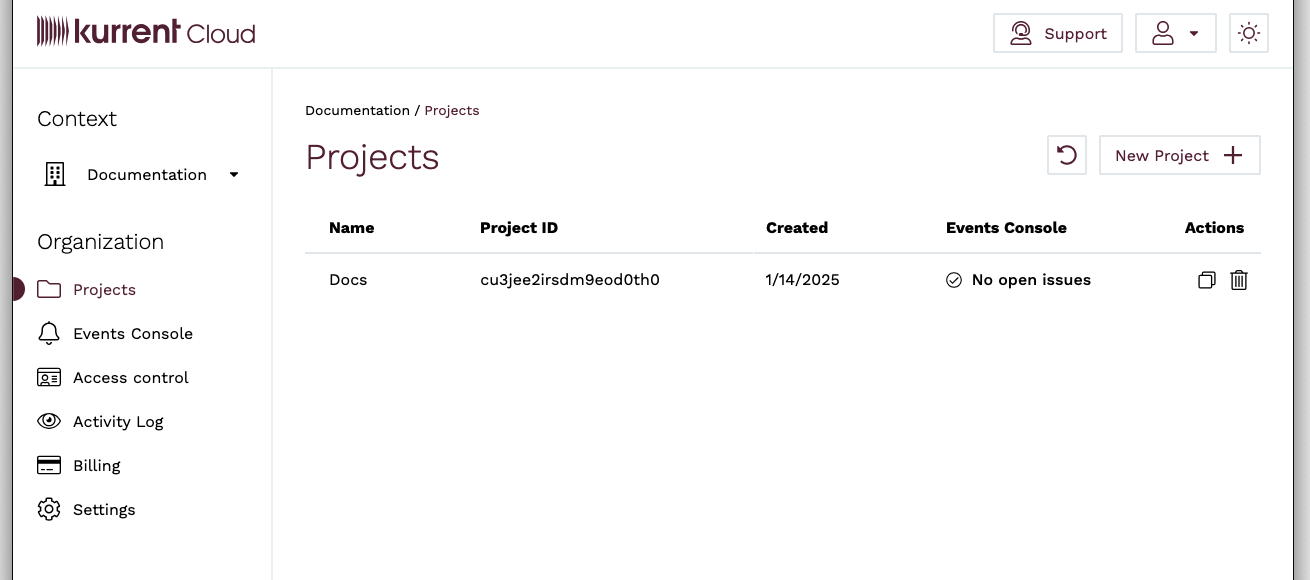
Within the organization's scope, you also have the organization's members and groups, billing information, alerts, etc.
You can always switch to another organization by clicking on the selected organization name, either selecting it from the list or clicking on All organizations to return to the list.
Access control
Each organization has its own access control, covering the members who can access the organization, the groups and policies that govern what they can do, single sign-on through your own identity provider, and service accounts for automation.
When you create an organization, you become its admin by default. The automatically created Organization admins group grants its members full access to the organization, and each project gets its own Project admins group.
For the full model — inviting members, managing groups and policies, configuring single sign-on, and creating service accounts — see Access Control.
Projects
An organization can have multiple projects. Projects serve as a logical grouping of cloud resources. For example, you might create separate projects per environment (test, staging, production) or per application, where each application might have one cluster per environment.
To create a new project, click the New project button. Then, enter the project name and add administrators from the list of organization users. Each project also gets its own Project admins group, and all the users you add as administrators when creating the new project will become members of this group.
You get to the project context screen when you click on a project in the project list.
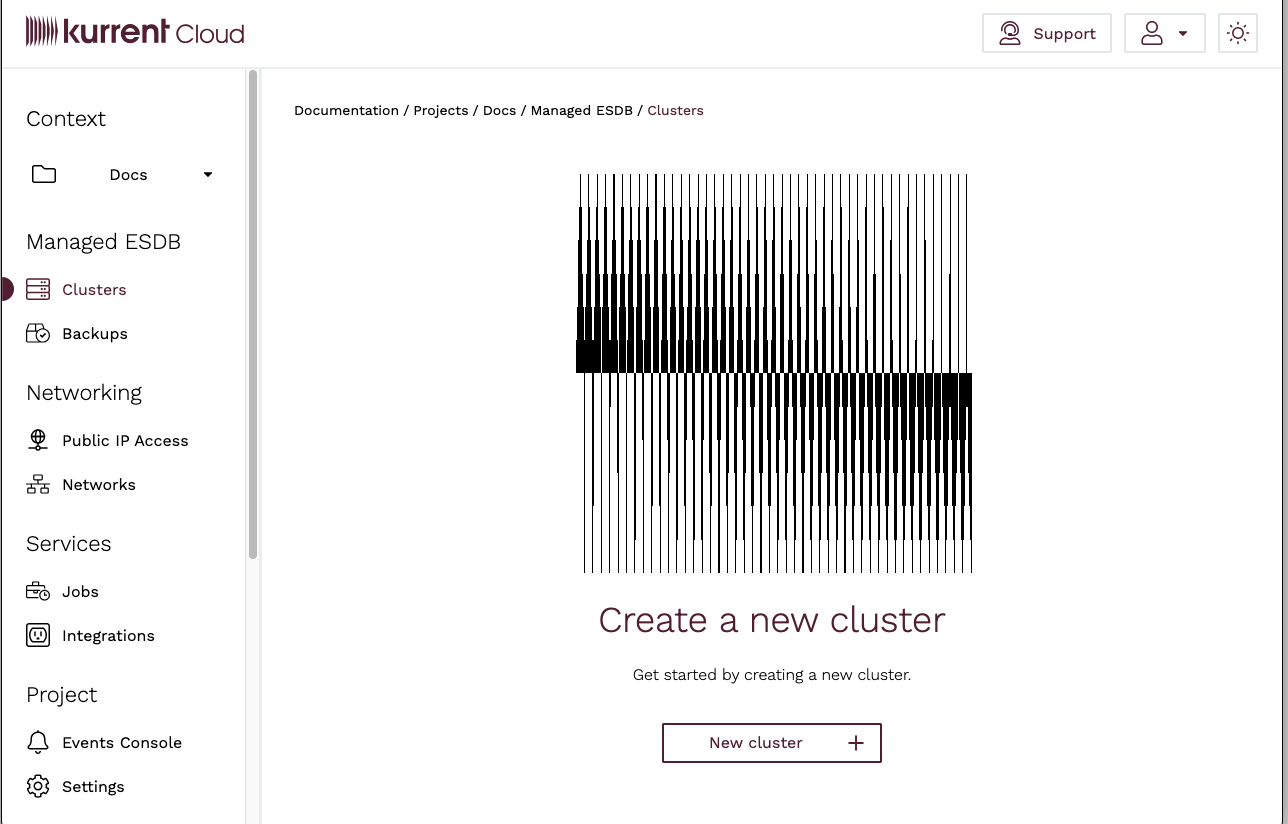
Within the project context, you can manage project clusters, backups, networks, etc.
Provision a cluster
You are now ready to start provisioning cloud resources with Kurrent Cloud. Please proceed to the Getting Started guide to learn how to provision your first cluster.